
We offer a few different ways to keep up with deals and community activity. Here’s what each one does and how to manage it.
Email: The Best Deals in Your Inbox
Subscribe to our newsletter for a roundup of the best deals with no more than 1 email a day.
We also occasionally share exclusive offers just for email subscribers, so you’ll see some deals that won’t appear anywhere else.
Push Notifications: A Heads-Up for Deals That May Go Fast
Some deals don’t last long enough to make it into our next email. Push notifications let us alert you to particularly good offers (especially when we think they could expire or sell out quickly).
You may receive more than one push notification a day but we’ll keep them selective. We won’t send an alert for every deal we post.
How to subscribe
Click the Subscribe to push notifications button below.
Тhen select Allow if your browser asks for permission.
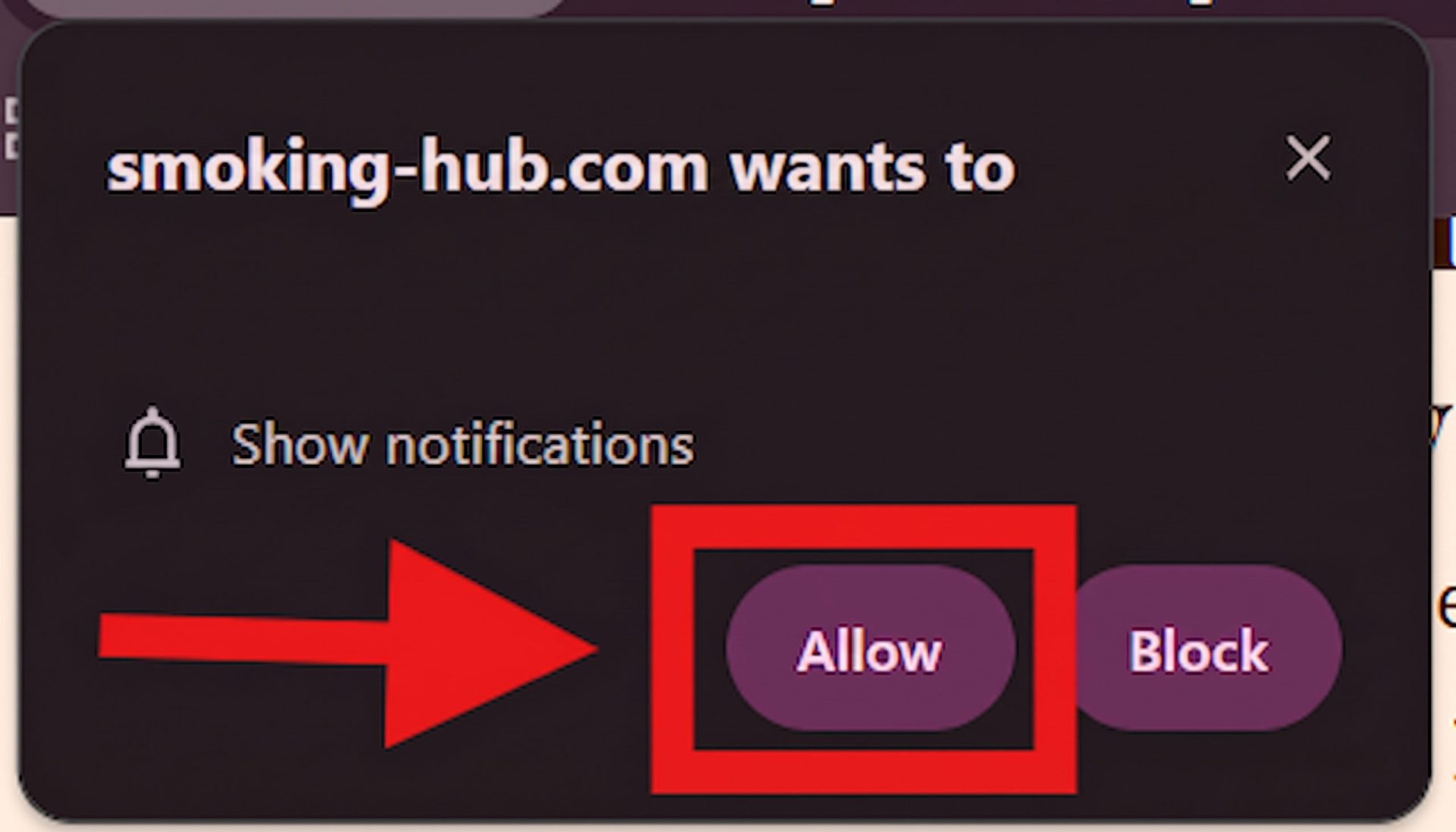
You can unsubscribe anytime by returning to this page and clicking the same button, which will now show Unsubscribe from push notifications.
How to Get Notifications on iOS
To enable web push subscriptions on an iPhone or iPad, Apple requires the website to be saved and launched as a standalone web app saved on your home screen, here is the step-by-step guide on how to do it.
Notifications: Your Community Activity
These are the updates you see when you’re on our site and open the bell icon.
They keep you informed about activity related to your account, posts, comments, and points. They only appear within the site: no push alerts or emails.
You can control notifications for:
- Changes to your membership level.
- Replies to your comments.
- Comments on your posts.
- Points earned for completing an action.
- Points deducted when an action is reversed.
- Replies to forum topics you started.
- Replies to your posts within forum topics.
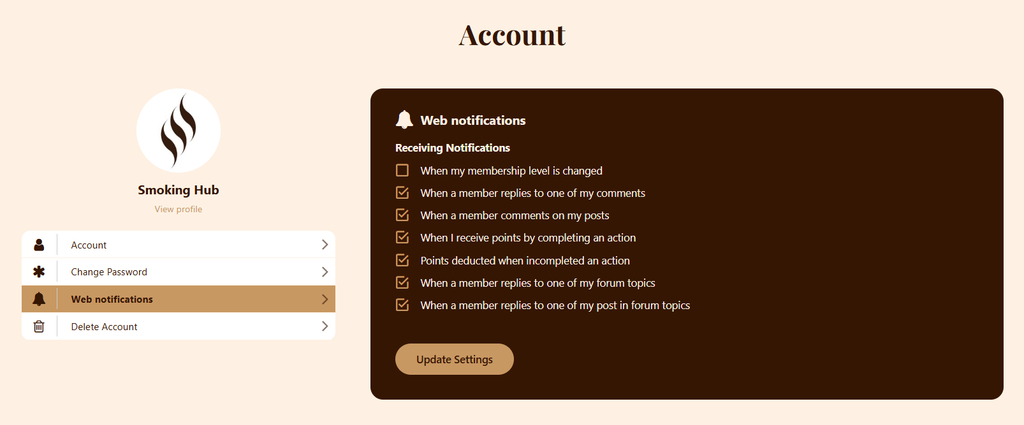
To change your preferences:
- Open your notification settings.
- Uncheck any notification types you don’t want to receive. Leave the ones you want checked.
- Click Update Settings to save your changes.
These settings apply only to your in-app notifications. They don’t change your newsletter subscription or push notifications.
Manage notifications from the bell
Open the bell icon, then select the three dots at the top of the notification panel. From there you can:
- See all notifications to view the full list.
- Mark all as read to clear your unread status.
- Clear all notifications to remove the current notifications.
- Notifications settings to choose which updates you receive.
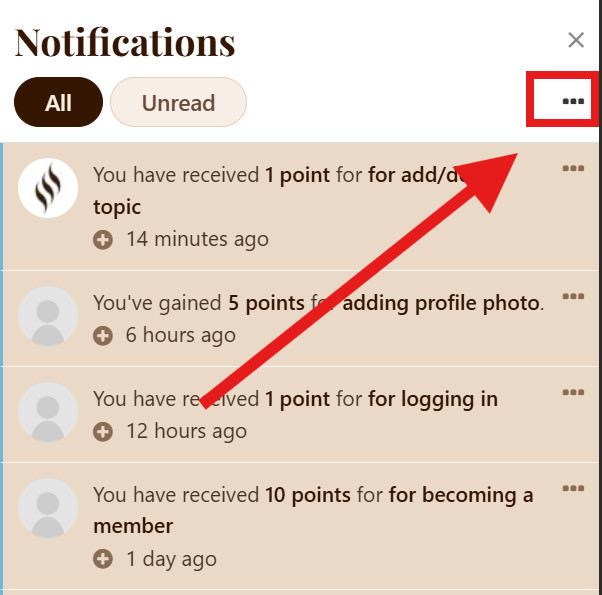
Clearing notifications doesn’t turn off future updates. To stop a particular type, uncheck it in your settings and save your changes.
Coming Soon: Telegram & Discord Alerts by Forum Category
Want alerts for new deals and forum topics in specific categories?
We’re planning dedicated channels for each forum category in our Telegram community and on our Discord server.
Once these are live, you’ll be able to enable notifications for the categories you care about and mute the rest. This will give you more control over which new deals and discussions trigger an alert on your device.
Have Feedback or an Idea?
We’re always open to feedback and new ideas. Tell us what’s useful, what could be better or what’s missing in Support & Feedback.